
Opening a SQLite database lets you view its tables and edit its rows. DB Browser for SQLite is a desktop application for working with SQLite files, with a table view and an SQL editor.
In this piece, I’ll show you how to open a database and save a row edit with Write Changes.
TL;DR
DB Browser for SQLite opens a database file in a desktop window so you can inspect tables, edit records, run SQL, and save your changes.
- Use the official download for your operating system, then open an existing database or create one.
- Browse Data shows table rows, while Execute SQL runs queries.
- Click Write Changes to commit edits, or Revert Changes to discard them.
What is DB Browser for SQLite?
DB Browser for SQLite, also called DB4S, is a visual desktop application for creating, searching, and editing SQLite database files. It pairs a spreadsheet-like view of records with an SQL editor.
The project offers builds for Windows, macOS, and Linux. Its official site lists the stable release and download links, while the SQLite tools comparison helps you decide whether a graphical client or the sqlite3 command line fits your task.
How to use DB Browser for SQLite step by step
DB Browser for SQLite provides a desktop workflow for opening a file, browsing records, changing rows, and running queries. Follow these steps to create or open a database, then choose the tab for the task you want to complete.
Step 1: Install DB Browser from the project site
Get DB Browser from the official download page. The repository also lists platform-specific install routes.
On Debian-based systems, apt-cache policy sqlitebrowser reports the installed state and available package candidate without installing the application.
apt-cache policy sqlitebrowser
sqlitebrowser:
  Installed: (none)
  Candidate: 3.12.2-3build2
  Version table:
     3.12.2-3build2 500
        500 http://ap-mumbai-1-ad-1.clouds.ports.ubuntu.com/ubuntu-ports noble/universe arm64 Packages
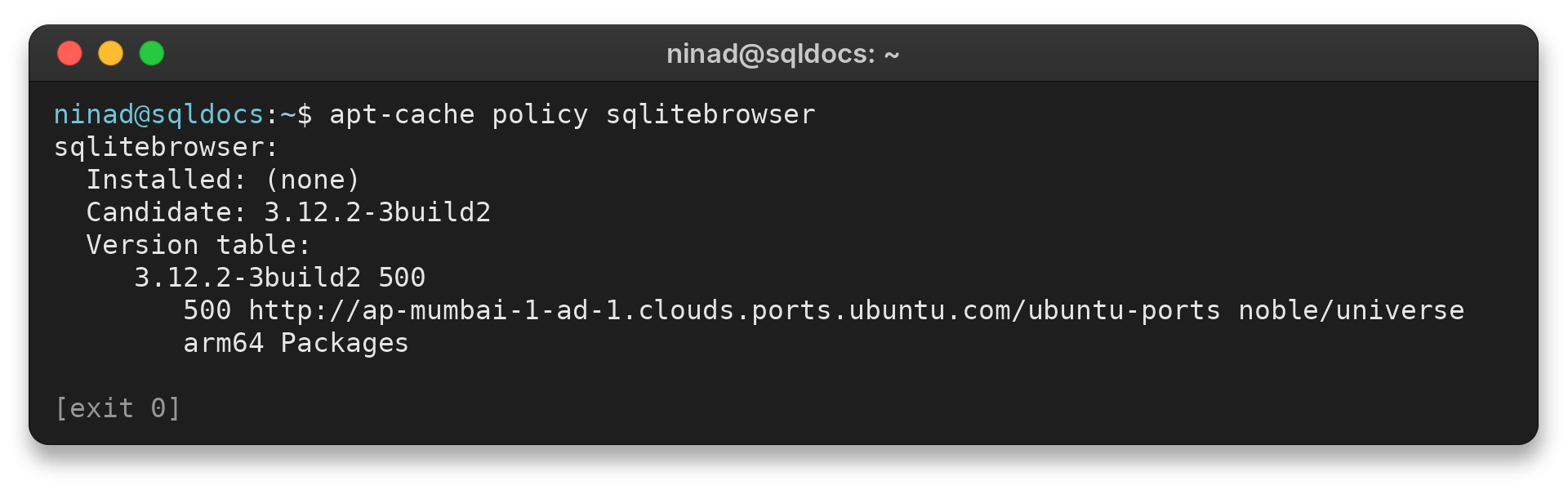
The displayed candidate is specific to this Ubuntu repository and architecture, so compare it with the current upstream release before installing. The project describes nightly builds as less reliable than stable releases.
Step 2: Open a database or create a file
Choose Open Database and select the SQLite file you want to inspect. A database is usually a file on disk, so check its full path before editing. To start a new file, choose New Database and save it where you want the file to live.
After opening a database, the Database Structure tab lists its schema objects. If you created an empty file, use New Table to define columns before entering records. A table stores rows under named columns, and its schema sets the available fields and constraints.
- Name the table and add a column for each value you plan to store.
- Choose a type and constraints. An integer primary key can identify a row, while a text column can hold a label.
- Save the table definition, then open Browse Data and select the new table to add records.
If the expected table is missing, confirm the selected database path in the application and inspect Database Structure, since another file with a similar name can show a different set of tables.
Step 3: Inspect and edit rows in Browse Data
Select Browse Data, then choose a table from the table selector. The grid shows its records, and the project documents sorting and column controls in this view. To change a value, edit the relevant cell and review the row before saving.
DB4S keeps changes pending inside a transaction. Another program reading the file may not see those edits yet.
Choose Write Changes to commit, or Revert Changes to roll back. The project’s transaction documentation describes these controls.
Step 4: Run SQL in Execute SQL
Use Execute SQL when a query is faster or clearer than a sequence of grid edits. This sample creates a small table and lists two rows. Run it in DB4S’s SQL editor, or use sqlite3 from a terminal to check the SQL independently.
CREATE TABLE tasks (id INTEGER PRIMARY KEY, title TEXT NOT NULL, done INTEGER NOT NULL DEFAULT 0);
INSERT INTO tasks (title, done) VALUES ('Read query results', 0), ('Save edits', 1);
SELECT id, title, done FROM tasks ORDER BY id;
1|Read query results|0
2|Save edits|1
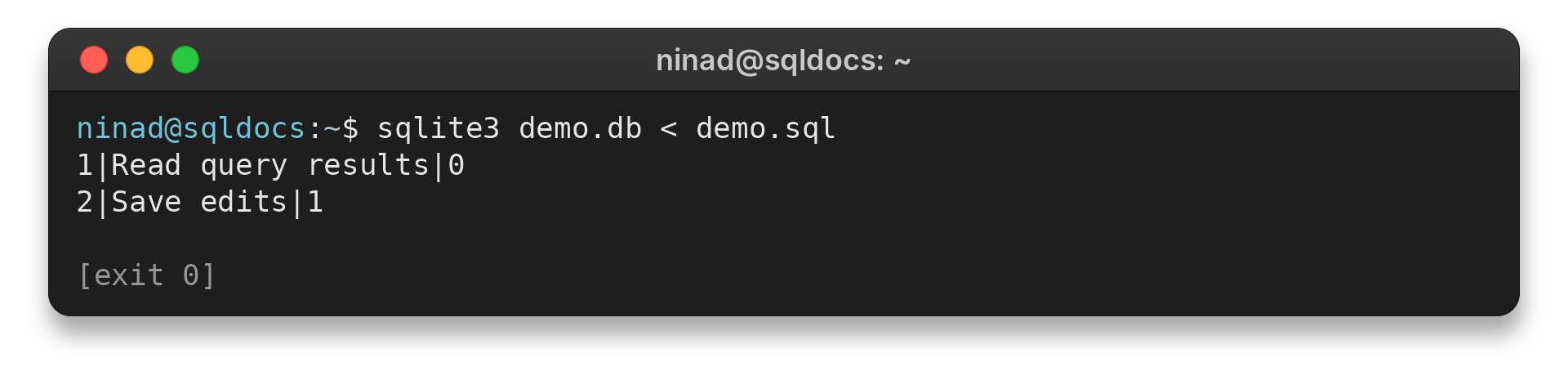
In DB4S, the query result appears in the result area. SQL that changes data still needs Write Changes to be committed.
Step 5: Import or export a CSV file
DB Browser supports importing CSV data into a table and exporting tables or query results. CSV is a plain-text format where each row represents a record and separators divide the fields.
For an import, choose the target table and inspect how the file’s first row and delimiter map to the table columns. A header row can provide column names, while a file without headers needs a deliberate column mapping. Confirm that text, numbers, and empty fields land in the intended columns before treating the imported rows as final.
For an export, decide whether you need every row in a table or only the result of a query. A query can select a subset before export, which avoids changing the stored table just to prepare a smaller file. Check the output path and open the exported CSV separately to confirm the columns and row count.
Before importing, check the delimiter and column mapping, then inspect sample rows. Keep a separate copy of the database before a bulk change. The project’s Browse Data documentation describes its import and export features.
Our SQLite backup guide covers ways to preserve the original file.
DB Browser for SQLite limits and fixes
DB4S is built around database tasks. A spreadsheet application handles broader cell formatting and presentation work, while DB4S focuses on tables, records, and SQL queries.
| What you see | What to check | Next action |
|---|---|---|
| Another program shows older data | Changes may still be pending in DB4S | Choose Write Changes, then read the file again |
| A table grid is empty | Confirm the selected database and table | Check Database Structure or open the intended file |
| A CSV import looks wrong | Delimiter and column mapping can affect the rows | Review the import settings and inspect sample records |
For repeated imports, scripts, or queries that need version control, a command-line workflow may be a better fit. Keep the database file and any exported copy distinct so an import or edit does not overwrite the only version you need.
Conclusion: treat Write Changes as your commit
DB Browser for SQLite brings file opening, row editing, and SQL queries into one desktop interface. The safest habit is to confirm the database path, inspect your changes, and choose Write Changes only when you intend to commit them. For command-line syntax, see our SQLite command cheat sheet.
FAQ
These answers cover common first steps with DB4S.
Is DB Browser for SQLite free?
The DB Browser for SQLite project describes the application as open source and provides downloads through its official website and repository.
How do I save edits in DB Browser for SQLite?
Choose Write Changes to commit pending database edits. Choose Revert Changes to roll them back instead.
Can DB Browser for SQLite run SQL queries?
Yes. Use the Execute SQL tab to enter queries and inspect their results.