
Getting a Windows app to open an SQLite database can depend on a library the app expects. sqlite3.dll is the Windows library an application loads to read and write SQLite databases.
I’ll show you how to find the official Windows package and follow the app’s instructions for installing it. I’ll also explain what to check when the app still cannot load the library.
TL;DR: Download sqlite3.dll from SQLite’s official site
Get sqlite3.dll from the official SQLite download page, choose the package that matches the Windows architecture and application, then follow that application’s instructions for where the library belongs.
- Use the Windows DLL package from sqlite.org/download.html, not a third-party DLL mirror.
- The DLL is a library for applications. It is different from the sqlite3.exe command-line shell.
- Do not copy it into a Windows system folder or register it unless the software vendor specifically instructs you to.
What is sqlite3.dll?
sqlite3.dll is the Windows dynamic-link library build of SQLite, a software library that lets an application read and write SQLite databases. An application loads the library when it needs SQLite functions, including opening a database connection.
The DLL is a library, not the command-line program or a database file. SQLite’s download page lists separate Windows packages for DLLs and command-line tools. If your goal is to use SQLite from a terminal, follow our SQLite installation guide instead.
How to get sqlite3.dll for a Windows app
Find the application that displayed the message and note its exact error. Then use SQLite’s official download page to find the library package, matching the app’s required architecture and version.
Step 1: Find the official Windows DLL packages
Open the official SQLite downloads page. Find the precompiled Windows DLL package and choose the architecture required by the application. A 64-bit Windows installation can still run a 32-bit application, and that application needs a compatible 32-bit library.
When the software vendor names a particular SQLite build or package, follow that specification rather than choosing by Windows version alone.
| What you see | What to choose |
|---|---|
| Application documentation says x64 | SQLite’s Windows x64 DLL package |
| Application documentation says ARM64 | SQLite’s Windows ARM64 DLL package, if supported by the app |
| Application documentation says x86 or 32-bit | A compatible 32-bit SQLite build. Confirm the package on SQLite’s download page |
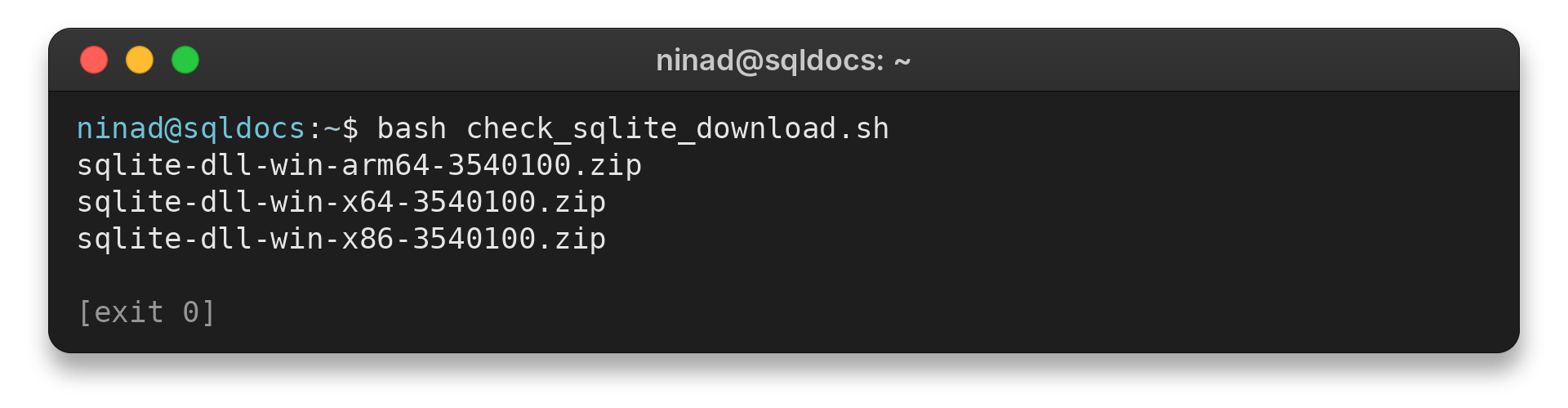
I checked the live SQLite download page and found separate x64, ARM64 and x86 DLL archives. This read-only check shows the filenames currently listed. It does not download or install a DLL.
#!/usr/bin/env bash
set -euo pipefail
curl --fail --silent --show-error --location https://www.sqlite.org/download.html | grep -oE 'sqlite-dll-win[^ "<>]+\.zip' | sort -u | head -n 5
bash check_sqlite_download.sh
sqlite-dll-win-arm64-3540100.zip
sqlite-dll-win-x64-3540100.zip
sqlite-dll-win-x86-3540100.zip
The returned filenames show which architecture-specific archives the page listed when I checked it. Their version digits can change, so use the live page rather than copying a filename from an older article.
Then compare the package architecture with the application documentation. A 64-bit Windows installation can still run a 32-bit application, and that application needs a compatible 32-bit library.
Step 2: Extract the DLL and follow the app’s install instructions
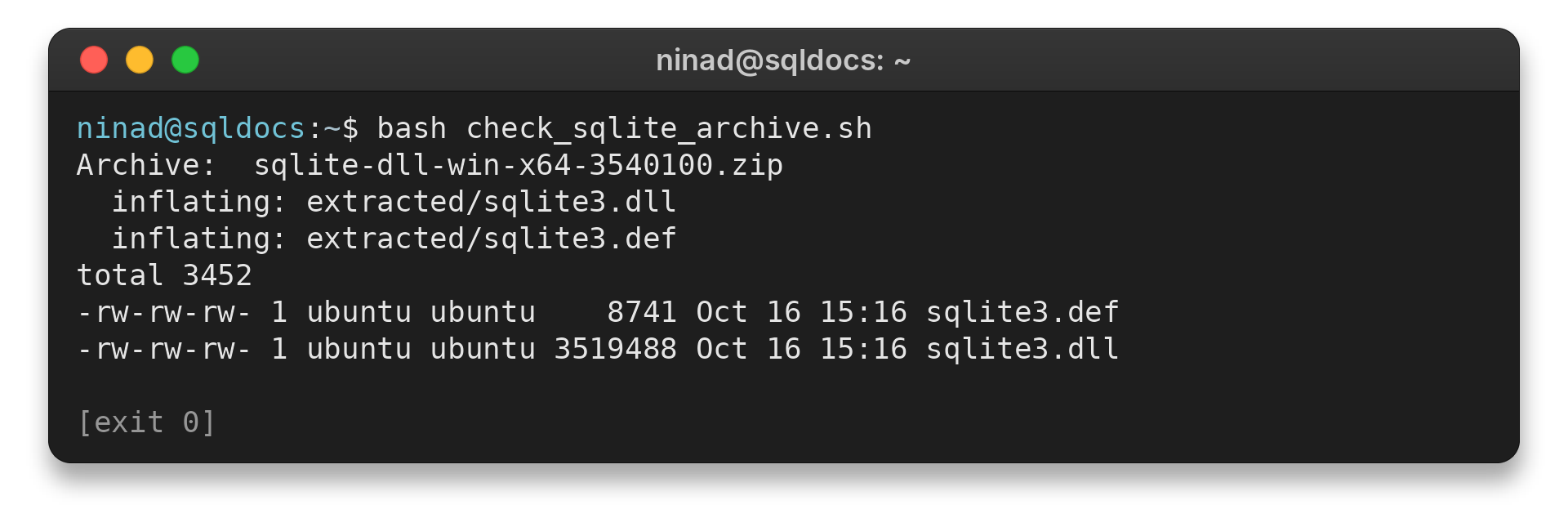
Extract the archive to a temporary folder. Locate sqlite3.dll, then consult the application’s documentation for its native-library search location. This check uses a downloaded archive to show which files the DLL package contains.
#!/usr/bin/env bash
set -euo pipefail
curl --fail --silent --show-error --location --output sqlite-dll-win-x64-3540100.zip https://www.sqlite.org/2026/sqlite-dll-win-x64-3540100.zip
unzip -o sqlite-dll-win-x64-3540100.zip -d extracted
ls -l extracted
bash check_sqlite_archive.sh
Archive:  sqlite-dll-win-x64-3540100.zip
  inflating: extracted/sqlite3.dll
  inflating: extracted/sqlite3.def
total 3452
-rw-rw-rw- 1 ubuntu ubuntu    8741 Oct 16 15:16 sqlite3.def
-rw-rw-rw- 1 ubuntu ubuntu 3519488 Oct 16 15:16 sqlite3.dll
The archive contains sqlite3.dll and sqlite3.def. I extracted these files in the run workspace only. On Windows, use the application’s documented directory and its standard archive tool rather than copying this Linux command into a Windows shell.
Some applications bundle libraries beside the executable. Others use a plugin or runtime directory. There is no universal folder for every Windows program.
For software with an installer, prefer repairing or reinstalling that software from its official source. That restores the version and files the publisher tested together. Avoid replacing a file in an application folder while the program is running, and keep a backup of any application-owned file before changing it.
Step 3: Confirm that the application loads the library
Close and reopen the affected program after following its installation steps. Check whether the same message appears and whether the application can perform the database task that failed. SQLite’s C API reports a return code when a database connection cannot be opened, and its documentation describes retrieving the associated error message.
If you are installing SQLite itself for terminal use rather than fixing an application’s dependency, use our guide to install SQLite3 on Windows. It covers the command-line shell, which is a separate download.
Fix sqlite3.dll loading errors
A “missing DLL” message means the application could not load the library it expected, but the file’s absence is only one possible cause. Check the application, architecture and library location before changing Windows-wide files.
| Symptom | What to check | Safer next step |
|---|---|---|
| “sqlite3.dll is missing” at one app’s startup | Which installed application displays the dialog | Repair or reinstall that app from its publisher |
| The DLL exists but the app still cannot load it | Whether its architecture matches the application | Use the architecture specified by the app’s vendor |
| “Unable to load DLL” or a module-not-found error | The app’s documented library search directory and dependent files | Follow the vendor’s native-library troubleshooting steps |
| Error began after an application update | Whether the app changed its bundled SQLite version or runtime | Use the publisher’s repair or rollback guidance |
| Warning appears for an unfamiliar program | Which startup item or installed app owns the warning | Investigate the app before downloading or replacing DLLs |
Windows applications can depend on more than the named DLL. The required architecture, dependent runtime files and library search path are set by the application and its build. Copying a file into a different directory may leave the actual loader problem untouched.
Also compare the module name in the error with the filename the application expects. Some frameworks use a differently named SQLite library.
A file called sqlite3.dll cannot satisfy a request for a different module name, even when both are related to SQLite. Check the software vendor’s dependency list for the expected filename.
Version compatibility matters too. An app may depend on a specific SQLite build, compile-time option or companion runtime. SQLite’s compile documentation describes options that can affect which features a library includes.
A replacement DLL from another application may omit a required feature or have a different version. Reinstalling the affected app is a safer first repair than borrowing a library from unrelated software.
If the error names a particular application, search that publisher’s support page for the exact message and release. Record whether the issue began after an update and whether the app has a repair option. That evidence helps distinguish a missing application file from an architecture mismatch or a missing dependent module.
Do not use regsvr32 as a general fix for sqlite3.dll. A DLL is not automatically a self-registering COM component, and registration does not put a library in the directory where an application searches for it. Follow a registration instruction only when the software publisher documents that specific operation for its product.
Do not download a DLL from a mirror just because its filename matches the error. A matching filename does not establish that its source, architecture or version is suitable. SQLite publishes its own builds and source through its official download page, while the program vendor explains which build its application supports.
Conclusion: use the DLL your app expects
Get sqlite3.dll from SQLite’s official downloads, match the package to the application, and install it only where that application expects native libraries. When the message persists, repair the specific program and check its loader requirements instead of moving DLLs into system folders.
FAQ
These answers cover common questions about the SQLite Windows library.
Where can I download sqlite3.dll?
Download the Windows DLL package from SQLite’s official download page at https://www.sqlite.org/download.html. Choose the architecture and build required by the application that loads it.
Where should I put sqlite3.dll on Windows?
Use the directory documented by the application that needs the library. Different programs load native DLLs from different locations, so there is no universal folder for every application.
Is sqlite3.dll the same as sqlite3.exe?
No. sqlite3.dll is a library that applications load, while sqlite3.exe is the SQLite command-line shell. Download the package that matches your task.